

On paper, Windows 11 is a modern, optimized system perfectly capable of running the latest games. In reality, many default settings can limit in-game performance, cause micro-stuttering, or result in a significant loss of FPS. The good news is that it's possible to optimize Windows 11 without third-party software, simply by adjusting a few key settings.
The goal of this article is clear: to explain Where are the settings?, what to change, And What concrete impact does this have on in-game performance?.
Enable Windows 11 Game Mode
Where to go
Settings → Games → Game Mode
What to do
- Enable Game Mode
Game Mode prevents Windows from launching certain background tasks during a gaming session (updates, notifications, non-essential processes). The FPS gain is generally modest, but stability is improved, especially on mid-range systems.
Disable unnecessary background applications
Where to go
Settings → Applications → Installed applications
For each non-essential application:
- Click on the application
- Go to Advanced options
- Define Allow background execution on Never
Less CPU and RAM consumption during gameplay, which reduces FPS drops and micro-freezes, especially on machines with 8 or 16 GB of RAM.
Set the power options to maximum performance.
Where to go
Settings → System → Power and battery → Power mode
What to do
- Select Best performance
On some PCs:
- Control Panel → Power Options
- Choose High performance
The processor and graphics card no longer throttle their frequencies. FPS is more stable, especially in CPU-intensive games.
Disable visual effects in Windows 11
Where to go
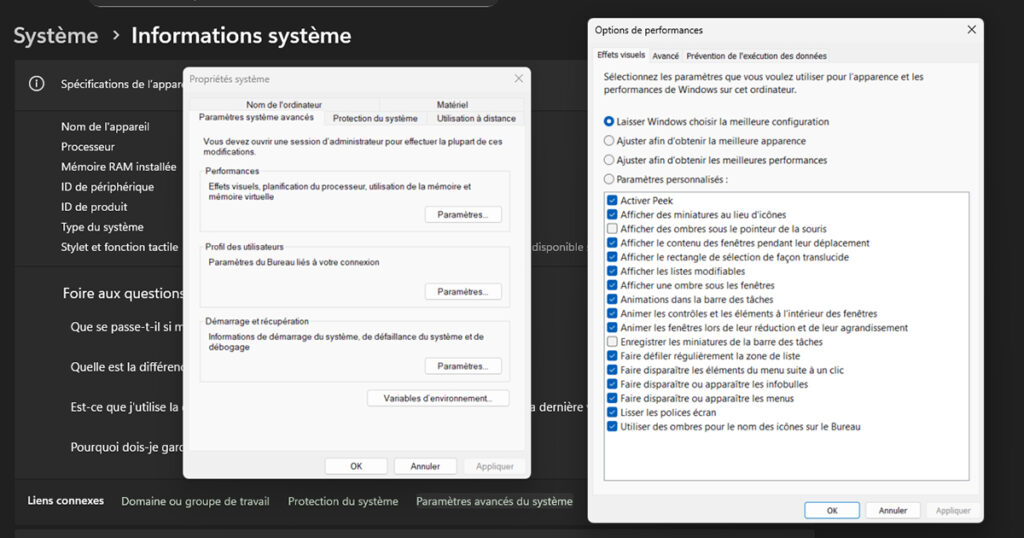
Settings → System → System information → Advanced system settings
Then Settings in the Performance section.
What to do
- Select Adjust to achieve optimal performance
- Or manually disable unnecessary animations and effects.
Windows consumes fewer graphics resources. The benefit is most noticeable on modest configurations or when the GPU is already heavily used by the game.
Check the graphics settings per application
Where to go
Settings → System → Display → Graphics
What to do
- Add the game in question
- Click on Options
- Select High performance
The game always uses the dedicated graphics card (on laptops or hybrid systems). This avoids FPS drops associated with using the integrated GPU.
Disable background recording (Xbox Game Bar)
Where to go
Settings → Games → Captures
What to do
- Disable Save in background
Then :
Settings → Games → Xbox Game Bar
- Disable if not used
Reduced CPU and disk load during gaming sessions. Can improve performance in demanding games.
Enable hardware GPU acceleration
Where to go
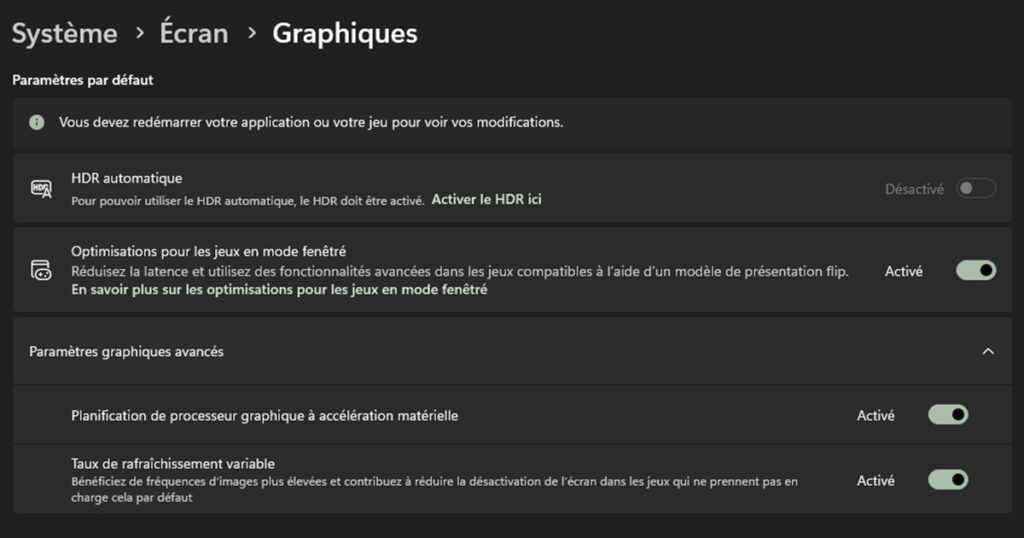
Settings → System → Display → Graphics → Default settings
What to do
- Enable Hardware-accelerated graphics processor scheduling
- Restart the PC
Reduced latency and slight performance improvement in some games, especially with recent graphics cards.
Update your graphics drivers correctly
Where to go
- Official NVIDIA / AMD / Intel website
- Avoid generic updates via Windows Update
What to do
- Install the latest certified drivers
- Restart after installation
Performance fixes, compatibility with recent games, removal of bugs that could impact FPS.
Clean up startup programs
Where to go
Task Manager → Startup
What to do
- Disable non-essential programs
Windows starts up faster and consumes fewer resources when launching a game.
Adjust network settings for online gaming
Where to go
Settings → Network & Internet → Advanced settings
What to do
- Disable unused networks
- Use a wired connection if possible
Less latency, more stable connections, better online experience.
Conclusion
Windows 11 is perfectly capable of delivering excellent gaming performance, provided you don't rely solely on the default settings. By adjusting a few key parameters, it's possible to improve stability, reduce micro-stuttering, and, in some cases, squeeze out a few extra FPS without upgrading your hardware.
These optimizations are especially useful after a fresh Windows installation or a major system update. They provide a solid foundation before considering more advanced adjustments directly within games or graphics drivers.