
When you first set up a new Android smartphone, everything seems to work perfectly. The system is smooth, the battery life is satisfactory, and the interface is pleasant to use. However, in most cases, Android is configured with default settings designed to suit the widest possible audience, rather than to offer a truly optimized experience.
Without installing any additional applications, it's possible to significantly improve the phone's battery life, responsiveness, and overall user experience. The settings below are those that should be checked and adjusted during the first few days of use.
Settings that immediately improve battery life
Optimize battery life application by application
General path:
Settings → Battery → Battery usage
It's advisable to identify the apps that consume the most energy. For rarely used or non-essential apps, enabling background usage limits prevents them from continuing to run when the screen is off. This simple action can have a significant impact on daily battery life.
Disable unnecessary synchronizations
Path :
Settings → Accounts
Many services automatically synchronize data in the background. When certain synchronizations are not needed, disabling them reduces unnecessary system wake-ups, and therefore overall energy consumption.
Check the screen brightness
Path :
Settings → Display → Brightness
Since the screen is one of the most energy-intensive components of a smartphone, enabling adaptive brightness is highly recommended. It automatically adjusts the screen intensity based on the environment and prevents excessive brightness from being constantly present.
Settings to improve system fluidity
Reduce system animations
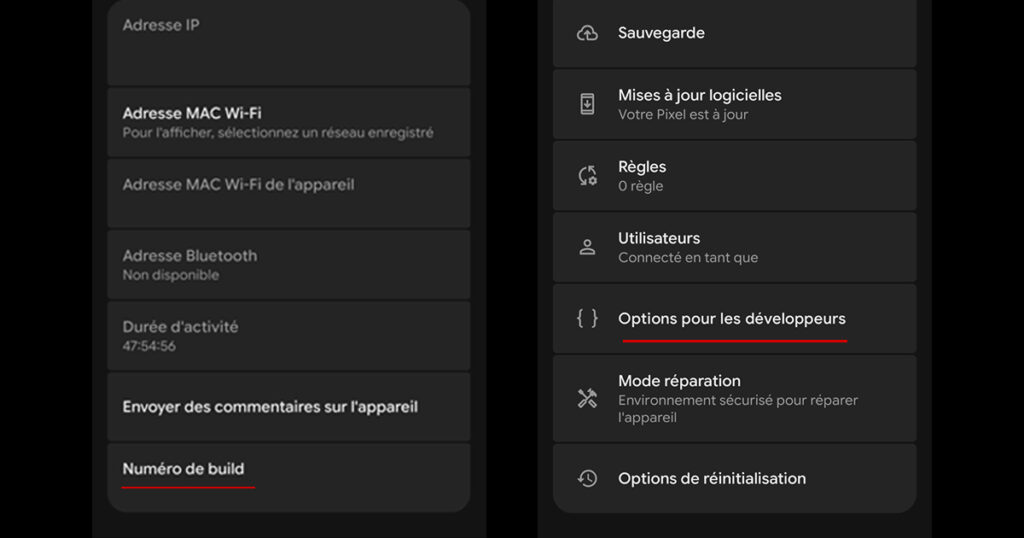
Path to enable developer options:
Settings → About phone → tap 7 times on “Build number”
Then :
Settings → (System) → Options for developers
The following parameters can be adjusted:
- Window animation scale
- Transition animation scale
- Animator duration scale
By setting these values on 0,5x, the transitions become faster and the system appears significantly more responsive, without altering the actual performance of the hardware.
Check the screen refresh rate
Path (varies depending on the model):
Settings → Display → Smoothness or Motion
When the device allows it, enabling an adaptive refresh rate improves the feeling of smoothness while limiting the impact on the battery.
Disable unnecessary pre-installed applications
Path :
Settings → Applications
Some smartphones come with pre-installed apps that are rarely used. When it's not possible to uninstall them, disabling them reduces background activity and frees up system resources.
Privacy settings to check first
Precisely manage application permissions
Path :
Settings → Privacy → Permission Management
It is recommended to check app access to sensitive information such as location, microphone, camera, and contacts. For most apps, the "Only allow access while in use" option offers a good balance between functionality and privacy.
Check location history
Path :
Settings → Location → Location History
When this feature is not essential, disabling it helps limit data collection and reduce background activity related to geolocation.
Settings to limit unnecessary notifications
Clear notifications app by app
Path :
Settings → Notifications
It's possible to disable non-essential notifications, including promotional ones. Stricter notification management not only reduces distractions but also limits energy consumption from repeated alerts.
Network settings are often overlooked.
Disable persistent network searches
Path :
Settings → Network → Wi-Fi / Bluetooth
Even when Wi-Fi or Bluetooth are not in use, some smartphones continue to search for nearby networks. Disabling these constant scans helps conserve battery life.
Check 5G usage
Path (according to the model):
Settings → Mobile network
In areas where 5G coverage is unstable, forcing the use of 4G can improve both connection stability and phone battery life.
Advanced settings for experienced users
Limit the number of background processes
Path :
Settings → Developer options → Background process limits
This setting restricts the number of applications that can remain active simultaneously. It can improve performance on less powerful devices, but should be used sparingly to avoid excessively frequent application closures.
Conclusion
Android is a rich and flexible operating system, but it comes with intentionally broad settings. By adjusting certain parameters right out of the box, it's possible to significantly improve battery life, responsiveness, and overall phone control, without resorting to third-party applications.
These settings should be checked every time you change smartphones, and sometimes even after a major system update. Minimal setup time allows you to fully enjoy your device in the long run.